# Volumes
Stormkit's Volumes feature allows you to maintain persistent files across deployments. This feature is perfect for applications that need to store and manage persistent data such as configuration files, user-uploaded content, and other types of files that need to persist between updates.
## Enabling Volumes (self-hosted)
This step is necessary only for self-hosted users.
To start using Volumes:
1. Navigate to your application's environment
2. Click on the "Volumes" tab in the navigation bar
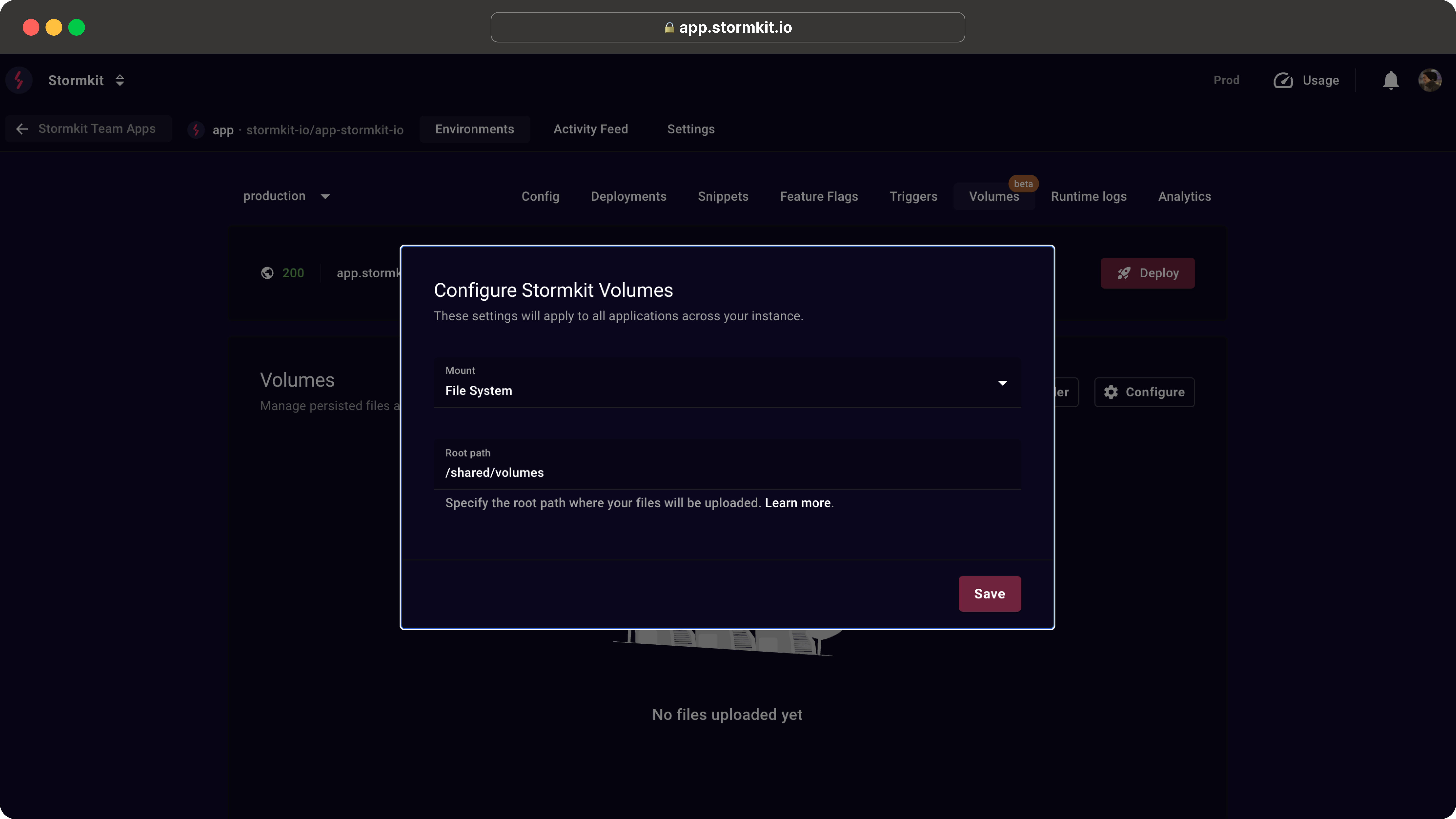
3. Click on "Configure" to set up your volume storage
You will need `Admin` rights in order to configure the volumes configuration.
## Configuration
Currently Stormkit supports file systems as persistent volumes. If you have a specific request (such as AWS S3, Alibaba OSS, Hetzner OSS or other storages), please [create a feature request](https://github.com/stormkit-io/app-stormkit-io/issues).
### File System
- **Root path**: The base path where your files will be stored (default: `/shared/volumes`)
These settings will apply to all applications across your instance.
## Managing Files
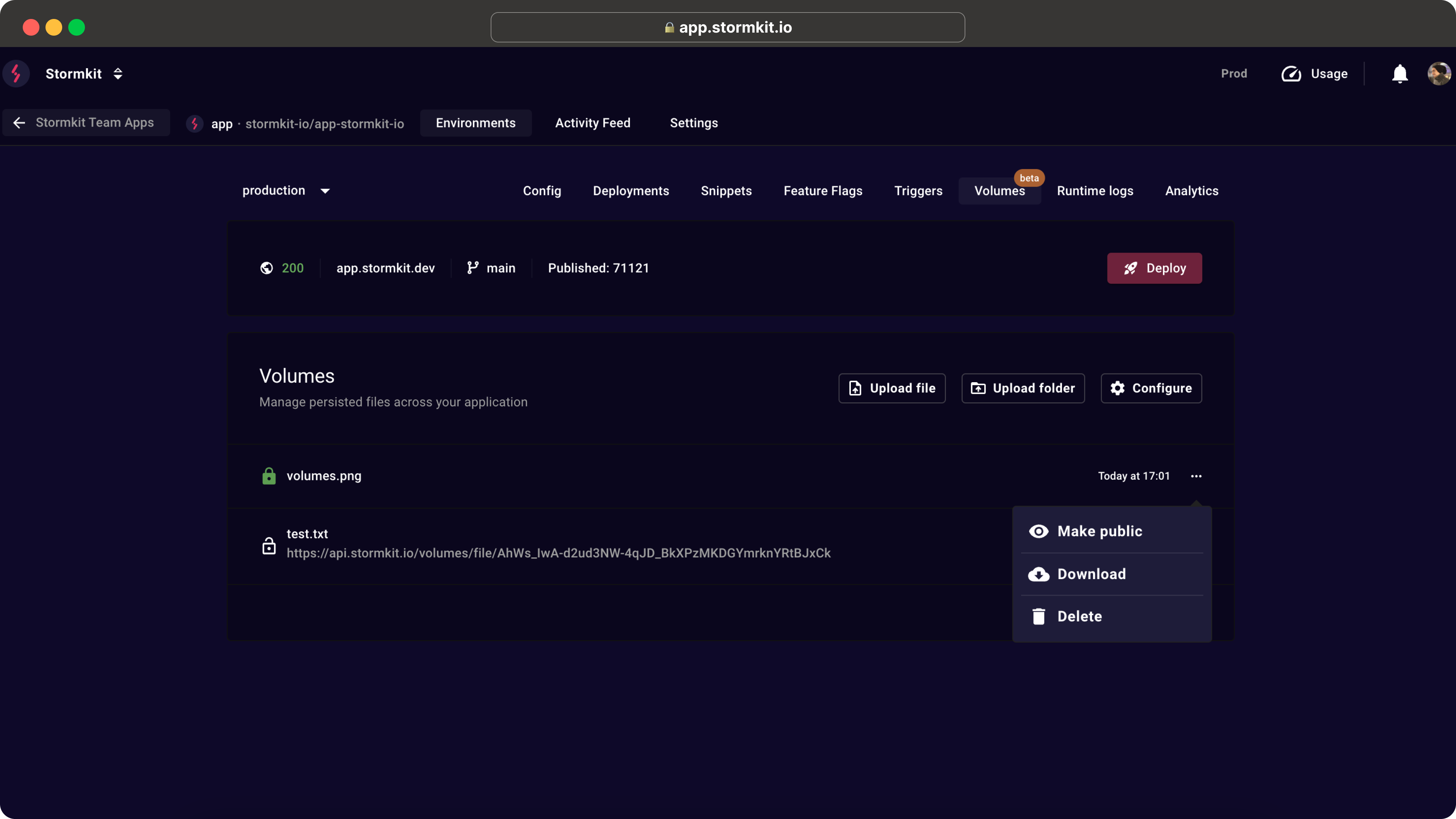
- To upload files click on `Upload file` button.
- To upload folders click on `Upload folders` button. The folder structure is maintained.
For each file in your volume, you can:
- Change file visibility (public or private)
- Download the file
- Delete the file
### Making Files Public
By default, all uploaded files in your volume are private files. To make them public:
1. Click the three dots menu (...)
2. Select "Make public"
3. Confirm your choice in the dialog
4. Once public, you'll receive a URL to access the file
## Accessing Files (self-hosted, file system)
Self-hosted users using a File System volume can access files directly.
The folder structure is as follows:
```
# Folder structure
/ae/
# Example
root path: /shared/volumes
app id : 152
env id : 235
file name: example/file-name.png
# Result
/shared/volumes/a152e235/example/file-name.png
```
## Note
The Volumes feature is currently in beta. It's recommended to regularly backup important data and monitor storage usage.