
 Discord
Setting up Stormkit with Cloudflare Tunnel
A complete guide for turning your local environment into a deployment and hosting platform
Sep 03, 2025
This tutorial will walk you through setting up Stormkit to work completely locally using Cloudflare Tunnel, allowing you to serve your application with HTTPS through your own domain while running everything on your local machine.
Prerequisites
- A Cloudflare account
- A domain managed by Cloudflare (a top-level domain or advanced certificate manager is required)
Overview
This setup allows you to:
- Run Stormkit locally
- Use Cloudflare Tunnel to expose your local development server
- Serve your application through your custom domain with automatic HTTPS
- Support wildcard subdomains for deployment endpoints
Step 1: Configure Stormkit Environment
Run the following command to install Stormkit with a single command.
curl -sSL https://www.stormkit.io/install.sh | sh
Alternatively, copy the contents of this docker-compose.yaml file and create an .env file similar to this example. Make sure both live in the same directory.
Add the following environment variables to the .env file:
# Disable HTTPS in Stormkit as it is going to be handled by Cloudflare
STORMKIT_HTTPS=off

# Optional: Set custom HTTP port (default is 8888)
STORMKIT_HTTP_PORT=80

# Set your domain: must be a top-level domain as Cloudflare supports automatic certificate
# generation for top and first level domains (example.com and *.example.com). Alternatively,
# you can purchase their Advanced Certificate Manager for more complex cases.
STORMKIT_DOMAIN=my-top-level-domain.com
Restart the containers so that environment variables take effect:
docker compose down hosting workerserver && docker compose up -d hosting workerserver
Step 2: Set up Cloudflare Tunnel
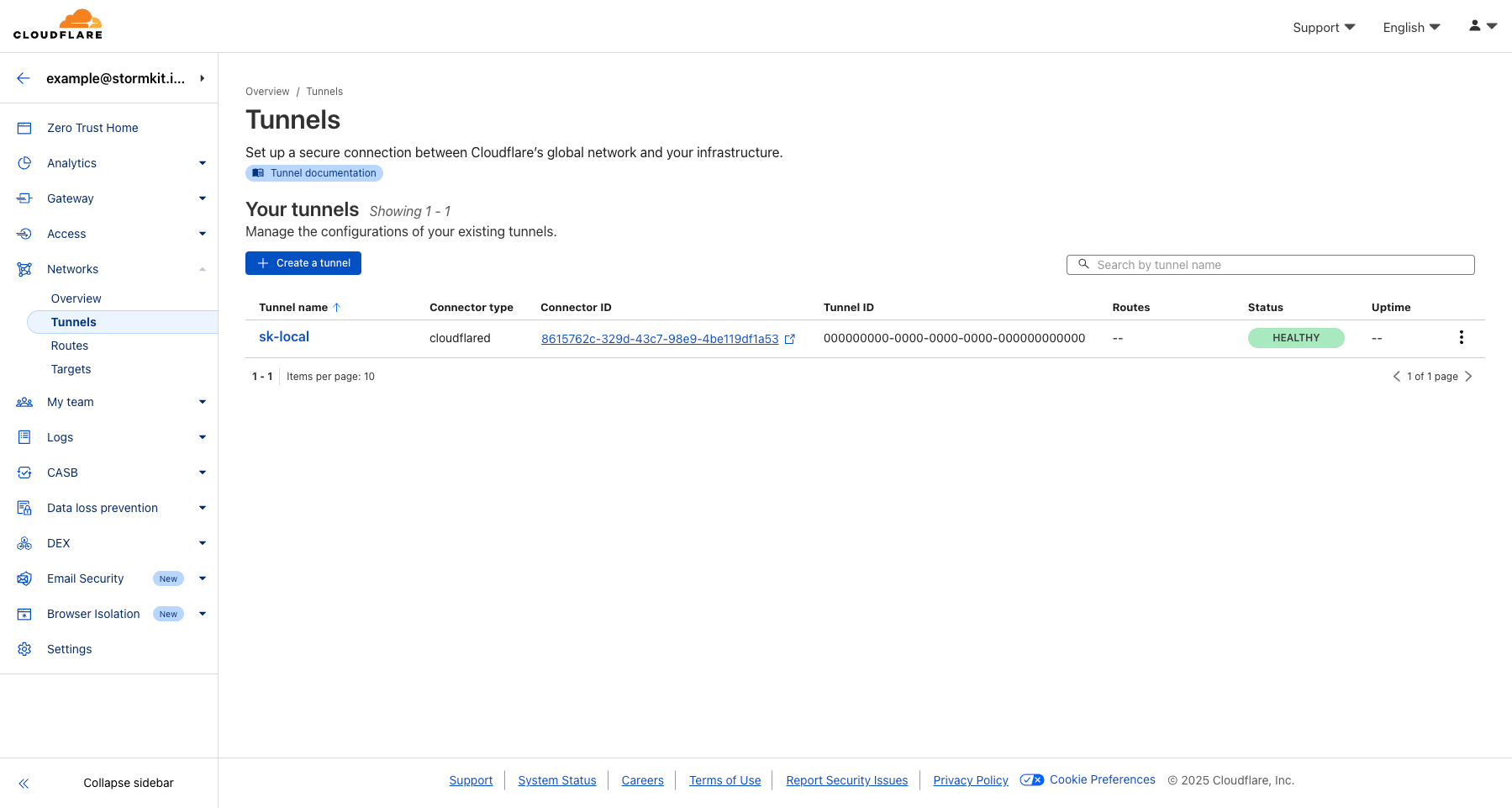
Access the Cloudflare Dashboard
- Log into your Cloudflare account
- Navigate to Zero Trust → Networks → Tunnels
- Click Create a tunnel
- Choose Cloudflared and name your tunnel
- Click Save tunnel
Install the Connector
Follow the instructions on the screen to:
- Install the connector on your local environment and
- Run the tunnel
You should see an output like this:
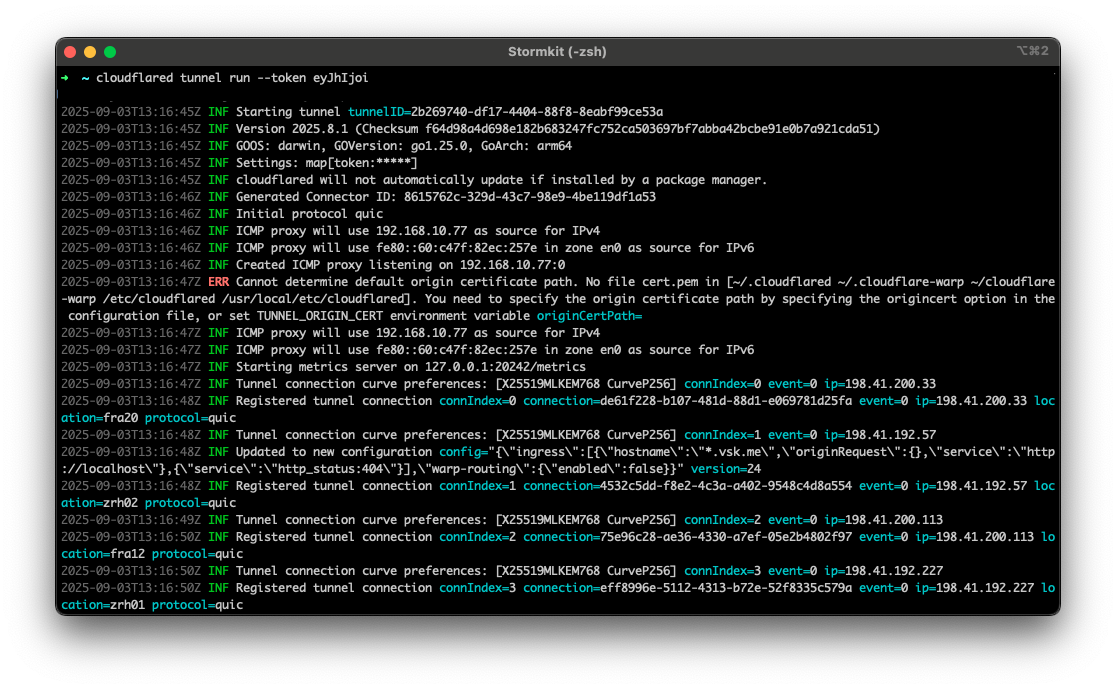
Then, click next to configure your hostname.
Step 3: Configure Public Hostname
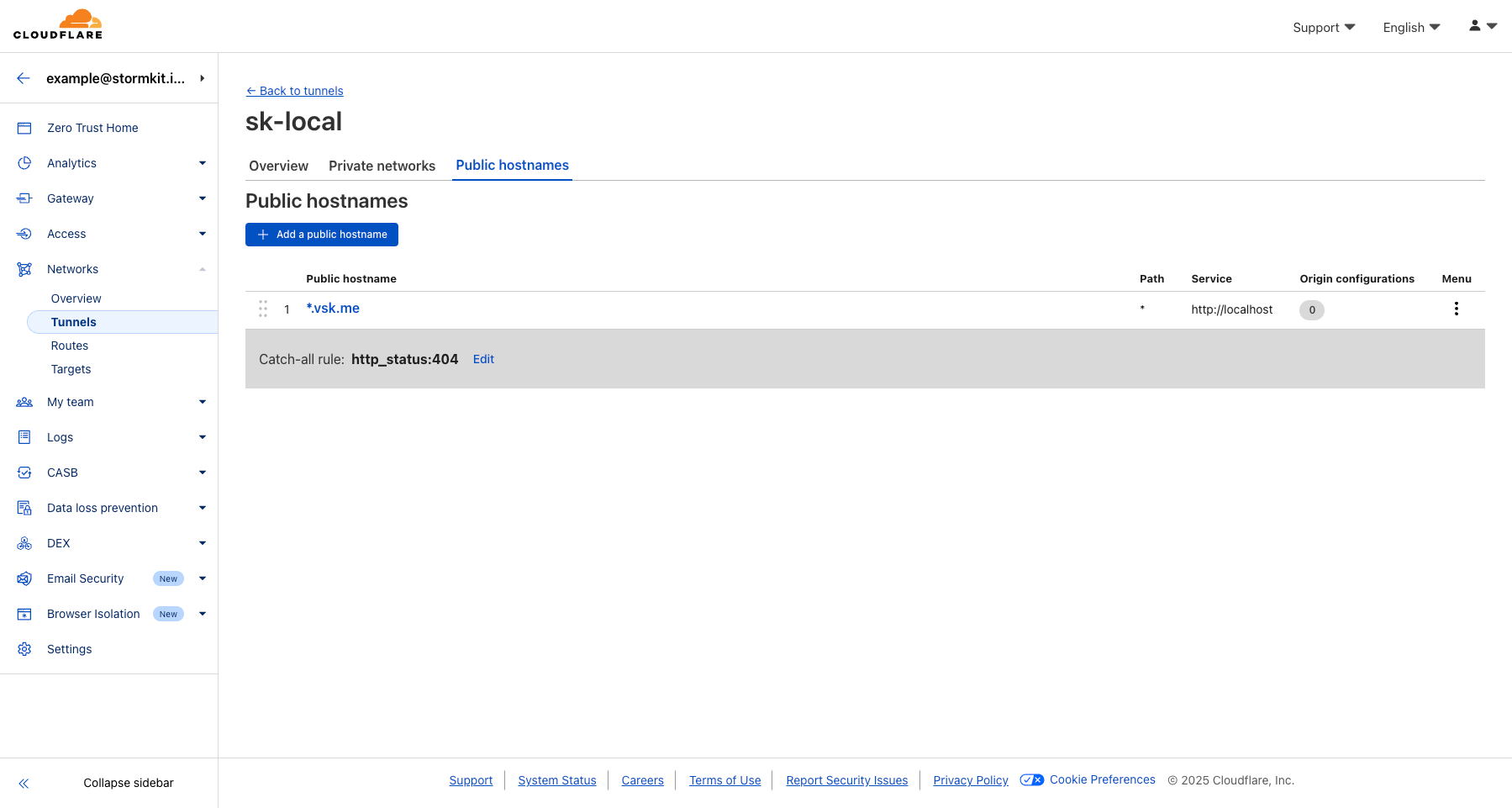
In the Public Hostnames section of your tunnel:
- Click Add a public hostname
- Configure the following settings:
- Subdomain:
*(for wildcard support) - Domain: my-top-level-domain.com
- Path: Leave blank
- Service Type:
HTTP - URL:
localhost:80(match yourSTORMKIT_HTTP_PORT)
- Subdomain:
Important Notes:
- The port in the URL must match your
STORMKIT_HTTP_PORT - Service type should be
HTTP, notHTTPS
Step 4: Configure Cloudflare SSL/TLS Settings
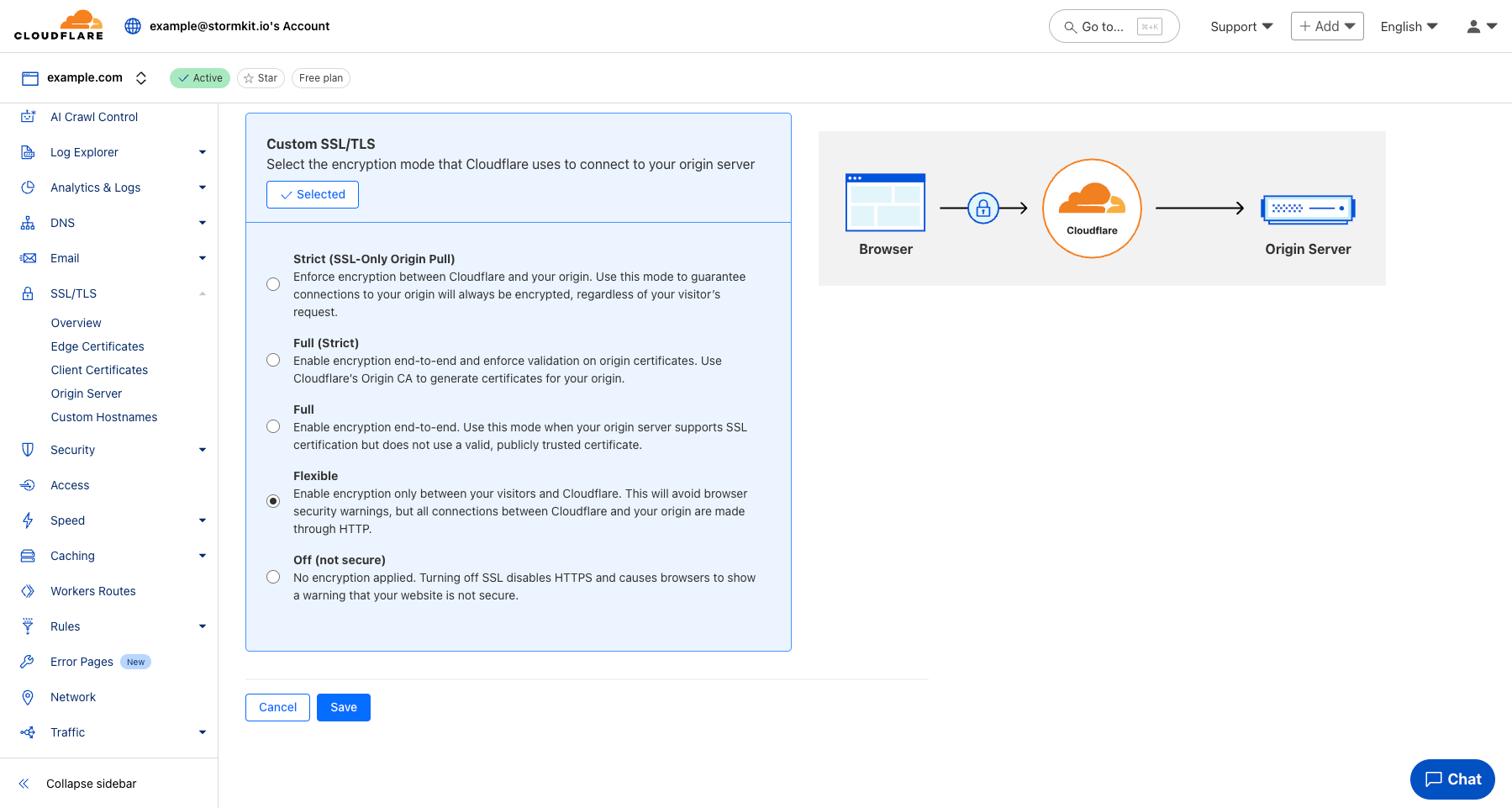
- Go to SSL/TLS → Overview in your Cloudflare dashboard
- Set SSL/TLS encryption mode to Flexible
Why Flexible Mode?
- Flexible: Cloudflare ↔ Visitor (HTTPS) + Cloudflare ↔ Origin (HTTP)
- This matches our setup where Stormkit runs HTTP locally but visitors get HTTPS
Step 5: DNS Configuration
The DNS records are created automatically when you set up the public hostname. You should see:
- An
AorAAAArecord for your domain pointing to Cloudflare's tunnel - Automatic wildcard support if configured
Step 6: Verify
You should be able to visit https://stormkit.your-top-level-domain.com and access the Stormkit Dashboard.
Troubleshooting
Common Issues:
Port Mismatch
- Ensure
STORMKIT_HTTP_PORTmatches the port in your Cloudflare tunnel configuration
SSL Errors
- Verify SSL/TLS mode is set to "Flexible"
- Check that
STORMKIT_HTTPS=offis set
Subdomain Not Working
- Ensure you used
*for the subdomain in tunnel configuration - Consider purchasing Advanced Certificate Manager for full wildcard SSL support
Tunnel Not Connecting
- Check that
cloudflaredservice is running - Verify the installation token was copied correctly
This setup provides a production-like development environment while keeping everything local and under your control!

2026 Stormkit OÜ ©